AI customer support with Linear
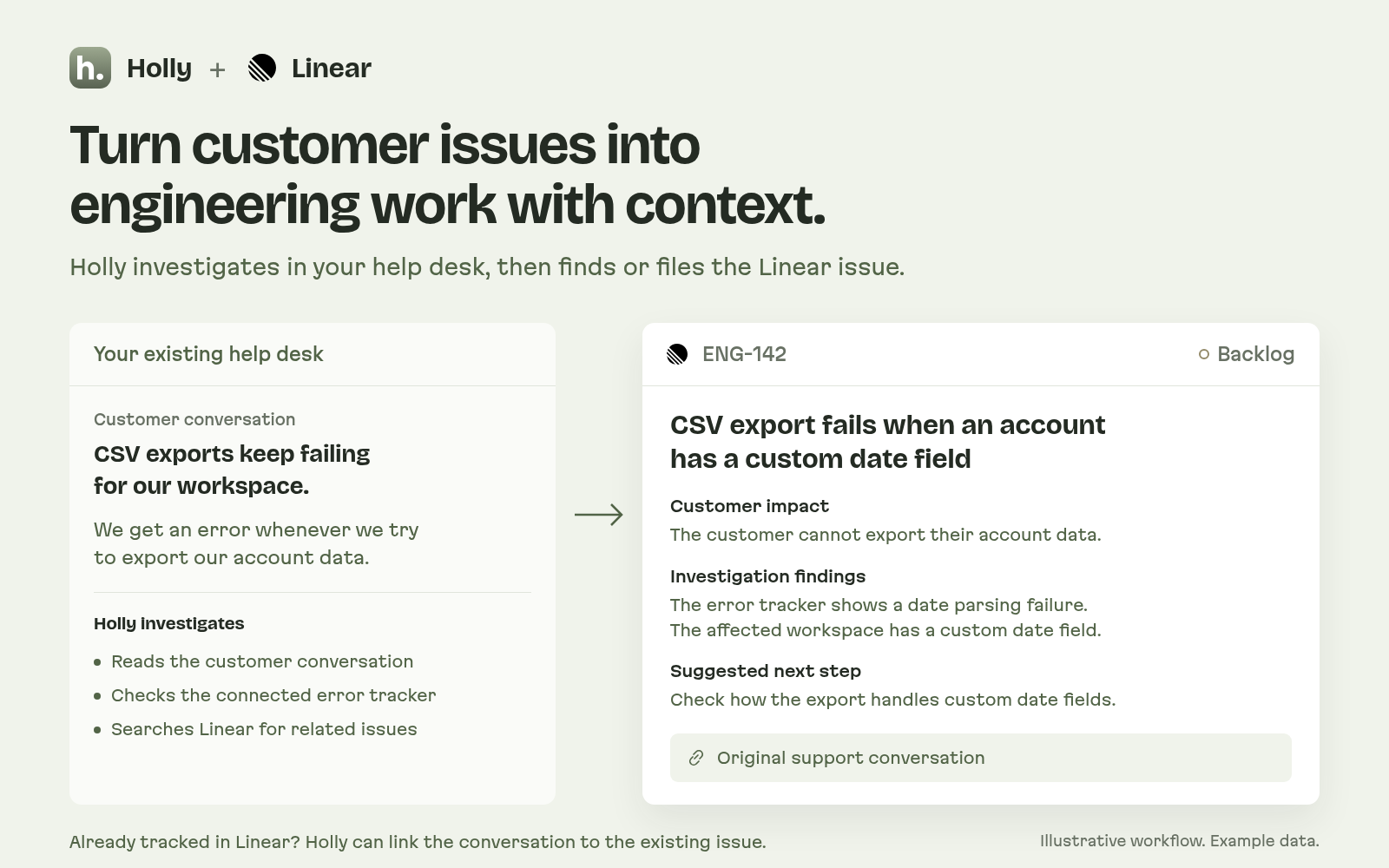
Holly is an AI support agent for your existing Help Scout or Fernand help desk. It checks Linear for known bugs and feature requests, links customer conversations to related work, and creates issues when new work is needed.
Your team gets the findings and a link to the customer conversation. With Cursor connected and a GitHub repository selected, Holly can launch a Cursor cloud agent after your approval to prepare a proposed fix pull request for engineering review.
What Holly can do with Linear
Check known bugs and feature requests
Holly searches Linear for related work and reads the issue status. It uses that context alongside your connected docs and systems to investigate reported bugs and questions about what your product can do.Link customers to the work already tracked
When an existing issue matches the reported bug or feature request, Holly can attach the original support conversation. Engineering can see the customer context without another issue for the same work.Create issues with the investigation included
When new work is needed, Holly can create a Linear issue in your selected team. Bugs arrive with the findings from connected systems. Feature requests include what the customer asked for. Both link back to the support conversation.Prepare a fix pull request for review
With Cursor connected and a GitHub repository selected, Holly can launch a Cursor cloud agent after your approval. When the agent produces a fix pull request, Holly attaches it to the Linear issue so engineering can review the proposed change.
Connect Linear to Holly
Follow Ben Robertson as he connects Linear to Holly Support, an AI support agent for your existing help desk.
Watch on YouTube1. Open Linear in Connections
Sign in to Holly, select your workspace, and open Connections. Choose Linear. You need an Admin or Owner role in your Holly workspace to manage connections.2. Authorize your Linear account
Select Connect with Linear and approve access to the Linear workspace you want Holly to use. Your Linear account must have access to the team and issues you want Holly to work with.3. Choose a default team
In Default team, choose the Linear team Holly should use for issue searches and new issues. Save with the button labeled Use followed by your team name. To switch teams later, select Change. Select Test connection in the page header to check the connection and team configuration.4. Set permissions for Linear tools
On the Linear connection page, find the Tools section. Turn on issue search, issue creation, and conversation linking as needed, then choose which actions require approval. To allow write actions without approval, a workspace Owner must also turn on Live writes. That setting applies to every connection.5. Optionally connect Cursor for fix pull requests
In Connections, connect Cursor and GitHub, and select the GitHub repository for fixes. On the Cursor connection page, enable the fix-launch tool in its Tools section. Holly must first create or link a Linear issue during the investigation. Each fix launch requires approval, even when Live writes is on.
Before you connect Linear
You need a Holly account and a Linear account with access to the relevant team. Connect a supported help desk, Fernand or Help Scout, so Holly can investigate customer conversations and link them to Linear issues. Holly and your help desk are separate services.
Holly requests read and write access through Linear OAuth. It uses that access to search issues, create issues, and attach links to support conversations. Holly tool permissions let you control which actions it can take and which require approval.
Holly checks the issue context and status. If an existing issue matches the reported bug or feature request, Holly can attach the support conversation. When a new issue is needed, Holly includes the customer context, investigation findings, and a link to the original conversation.
Connect Cursor and GitHub, select a GitHub repository, and enable the fix-launch tool in Holly. The investigation must already have created or linked a Linear issue. After you approve the launch, Holly starts a Cursor cloud agent. If it produces a pull request, Holly attaches the link to that Linear issue for engineering review. Every fix launch requires approval.
Confirm that your Linear account can access the team. If Connect with Linear is unavailable or a connection test fails, contact us for help with your setup. hello@holly.support